April 26, 2026 · Clement Team
How to Set Up SPF, DKIM, and DMARC for Cold Email (2026 Guide)
A practical, provider-by-provider guide to configuring SPF, DKIM, and DMARC for a cold-email sending domain — including the order to do it in, how to ramp DMARC safely, and the mistakes that break each one.

Table of contents
If you’ve just run our SPF/DKIM/DMARC checker and something came back red, this is the guide that walks the fix. If you’re setting up a new sending domain from scratch, this is the order to do it in.
The three records aren’t independent — DMARC depends on SPF and DKIM being aligned correctly, and DKIM depends on whichever sending platform you’re using actually generating and signing with a key you publish. Doing them in the wrong order is the single most common reason a setup that “should work” doesn’t. Order matters.
This guide covers the full setup for a cold-email sending domain in 2026, with provider-specific instructions for the tools most teams actually use. It’s long. Use the table of contents to jump.
What SPF, DKIM, and DMARC actually do (plain English)
The 30-second mental model:
- SPF (Sender Policy Framework) — the list of mail servers allowed to send mail on behalf of your domain. Receivers check the sending server’s IP against this list.
- DKIM (DomainKeys Identified Mail) — a cryptographic signature added to every outgoing message, signed with a private key, verified by receivers against the public key you publish in DNS. Proves the message wasn’t altered in transit.
- DMARC (Domain-based Message Authentication, Reporting & Conformance) — the policy receivers should follow when SPF or DKIM fail, plus a reporting mechanism that tells you who’s sending mail as you (legitimate or otherwise).
You need all three. SPF alone tells receivers who can send; nothing about whether the message is genuine. DKIM alone proves authenticity; nothing about who’s authorised. DMARC ties them together: align with SPF or DKIM, follow the published policy when both fail, and report the result back to the domain owner.
In 2026, the Google + Yahoo February 2024 sender requirements made all three effectively mandatory for any meaningful sending volume. Cold email sits squarely in that bracket.
For a deeper conceptual primer, our deliverability fundamentals post covers the why; this post covers the how.
Before you touch a DNS record
Two things to do before opening your DNS provider.
Decide on your sending domain
Send cold from a subdomain, not your apex. If your company is acme.com, send cold from outreach.acme.com or mail.acme.com. The reasons are reputation isolation and operational sanity:
- A cold campaign that goes wrong damages the sending subdomain’s reputation, not the apex. Your CEO can still send invoices the next morning.
- Subdomains can have their own DKIM keys, their own DMARC policy (
sp=controls the parent’s policy for subdomains), and can be retired if reputation gets unrecoverable. - The subdomain inherits some of the apex’s age signal but starts with a fresh sending track record.
Inventory every service that sends “from” your domain
Before you touch SPF, list every service that sends email claiming to be your domain:
- The cold-email platform you’re setting up
- Transactional email (Stripe receipts, Mailgun, Postmark, SendGrid, AWS SES)
- Marketing platforms (HubSpot, Mailchimp, Klaviyo, Customer.io)
- Calendar and meeting platforms (Calendly, Google Calendar)
- Any internal tools that send notifications
Each one needs to be authorised in SPF and (ideally) DKIM-signing. Missing one means legitimate mail starts failing DMARC the moment you turn it on. This is the step everyone skips and regrets two weeks later.
Step 1 — Set up SPF
SPF is a single TXT record on your sending domain. It looks like this:
v=spf1 include:_spf.google.com include:sendgrid.net ~allThe parts:
v=spf1— version. Always this.include:— pulls in another domain’s SPF rules. One per sending service.~all— softfail anything not in the list. Use~allwhile you’re getting things right;-all(hardfail) once you’re confident.
Add the TXT record
DNS providers all support TXT records, but the UX differs. The pattern is the same:
| Provider | What to enter |
|---|---|
| Cloudflare | DNS → Add record → Type: TXT, Name: outreach (for outreach.acme.com) or @ (for apex), Content: the SPF record |
| Namecheap | Advanced DNS → Add new record → Type: TXT Record, Host: outreach, Value: the SPF record |
| GoDaddy | DNS Management → Add → Type: TXT, Name: outreach or @, TXT Value: the SPF record |
| AWS Route 53 | Hosted zone → Create record → Record type: TXT, Record name: outreach, Value: the SPF record (in quotes for Route 53) |
| Google Workspace DNS | DNS → Custom records → Add a custom resource record → TXT, Name: outreach, Data: the SPF record |
DNS propagation usually takes minutes, occasionally up to 24 hours.
The 10-lookup limit (and how to stay under it)
SPF allows at most 10 DNS lookups when receivers evaluate your record. Every include:, a, mx, exists, and redirect consumes one. Cross 10 and the receiver returns permerror — your SPF effectively fails for everyone.
This is the second-most common reason SPF breaks (after duplicate records). Symptoms: you add one more sending service, suddenly mail from all your services starts going to spam.
Some include: chains are deeper than they look. _spf.google.com itself includes three more, eating four lookups for one entry. SendGrid, Mailgun, and HubSpot are similar.
To stay under the limit:
- Audit periodically — dmarcian’s free SPF surveyor visualises the lookup tree.
- Drop services from SPF if they DKIM-sign. DMARC alignment can pass on DKIM alone; SPF doesn’t have to cover every sender.
- If you genuinely need more, use an SPF flattening service (Valimail, EasyDMARC), which converts
include:chains into raw IP4/IP6 lists. Caveat: you’ll need to re-flatten when the upstream IP list changes.
~all vs -all — which to use and when
~all(softfail) — receivers should treat unauthorised mail as suspicious but still accept it. Use this during setup and ramp.-all(hardfail) — receivers should reject unauthorised mail outright. Use this once you’re confident SPF covers every legitimate sender.+all— never. Authorises every server on the internet to send as you.?all— neutral. Don’t use; it tells receivers you have no opinion, which is the same as not having a record.
Most teams sit at ~all indefinitely. There’s no urgent reason to move to -all if your DMARC policy is quarantine or reject — DMARC will catch the failures either way. -all is slightly stricter at the SPF layer; ~all is easier to recover from when a new sending service slips through.
Verify SPF
Once the record propagates, run the SPF/DKIM/DMARC checker on your domain. It’ll confirm:
- Exactly one SPF record exists (not zero, not two)
- Lookup count is under 10
- The record ends in
~allor-all
If any of those fail, fix before moving on. SPF is the foundation; DKIM and DMARC won’t save you if SPF is broken.
Step 2 — Set up DKIM
DKIM is a public/private keypair. The private key signs outgoing messages on the sending platform; the public key lives in a TXT record at <selector>._domainkey.<domain>. A “selector” is just a label — you can have multiple selectors, one per sending service, on the same domain.
A DKIM record looks like this:
v=DKIM1; k=rsa; p=MIIBIjANBgkqhkiG9w0BAQEFAAOCAQ8AMIIBCgKCAQEA...p= is the public key, base64-encoded. Everything else is metadata.
The setup is provider-specific because the sending platform generates the keypair. You publish what they give you.
Google Workspace (G Suite)
- Admin Console → Apps → Google Workspace → Gmail → Authenticate email.
- Select the domain (use your sending subdomain if you set one up — Google requires it to be a primary or alias domain in the tenant).
- Click “Generate new record.” Choose 2048-bit (the default in 2026; if you see 1024-bit as the default, change it).
- Google gives you a TXT record name (
google._domainkey) and value (the longv=DKIM1; k=rsa; p=...string). - Add the TXT record at your DNS provider, exactly as Google specifies. Wait for propagation.
- Back in Admin Console, click “Start authentication.” Google verifies and switches signing on.
The selector for Workspace is always google unless you’ve manually changed it.
Microsoft 365
- Microsoft Defender portal → Email & collaboration → Policies & rules → Threat policies → Email authentication settings → DKIM.
- Select the sending domain. Microsoft will display the two CNAME records you need to add:
selector1._domainkey→selector1-<tenantName>._domainkey.<onmicrosoft-domain>selector2._domainkey→selector2-<tenantName>._domainkey.<onmicrosoft-domain>
- Add both CNAMEs at your DNS provider.
- Once they resolve, return to the Defender portal and toggle DKIM signing on. Microsoft handles key rotation automatically (it’s why you get two selectors — one is the active key, one is the rotation target).
SendGrid
- SendGrid → Settings → Sender Authentication → Domain Authentication → Authenticate Your Domain.
- Pick your DNS provider (SendGrid customises instructions accordingly), enter your sending domain.
- SendGrid generates three CNAME records (one for SPF/return-path, two for DKIM with selectors
s1ands2). - Add the CNAMEs at your DNS provider, click “Verify” in SendGrid.
The selectors are s1 and s2. Both are real keys, both sign messages — receivers can verify with either.
Postmark
- Postmark → Sending → Sender Signatures → Add Domain.
- Enter the sending domain.
- Postmark gives you a DKIM TXT record at selector
<token>._domainkey.<domain>(token is a Postmark identifier). - Add the TXT record. Verify in Postmark.
- Postmark also surfaces a Return-Path CNAME — add that too; it improves SPF alignment.
Mailgun, Amazon SES, Resend
Each follows the same pattern: the platform generates a keypair, gives you one or more records to publish (TXT or CNAME), and you verify in the platform UI. The selectors vary:
- Mailgun —
mta._domainkey(CNAME or TXT depending on plan) - Amazon SES — three CNAMEs at
<token1>._domainkey,<token2>._domainkey,<token3>._domainkey - Resend — TXT at
resend._domainkey
If you’re sending through Clement, our setup wizard handles this automatically — you’ll see the records to publish in the dashboard.
2048-bit vs 1024-bit keys
Always 2048. Older platforms occasionally still default to 1024-bit; flip the setting if you can. 1024-bit is still accepted by major receivers in 2026, but the trajectory is clear, and 2048 has been the recommended floor for a decade.
Key rotation
Best practice is rotating DKIM keys roughly every six months. Microsoft 365 does this automatically. Most other platforms make you trigger it manually.
The mechanic: generate a new keypair under a new selector, publish the new public key, switch the platform to sign with the new key, then deprecate the old selector after a 24–48 hour overlap. Receivers don’t care which selector signs as long as the public key validates.
Verify DKIM
Run the SPF/DKIM/DMARC checker again, this time entering your DKIM selector if it’s not one of the common ones (google, selector1, s1, default). The result should show:
- Selector found at
<selector>._domainkey.<domain> - Valid
v=DKIM1version - 2048-bit estimated key size
- No
t=ytesting flag
A common gotcha: you publish the DKIM record but forget to enable signing on the sending platform. The checker will show the public key as published, but no actual mail will be DKIM-signed. Verify by sending a test message and inspecting the headers — look for Authentication-Results: dkim=pass.
Step 3 — Set up DMARC
DMARC is a single TXT record at _dmarc.<domain>. A minimal record:
v=DMARC1; p=none; rua=mailto:[email protected]; pct=100The tags:
v=DMARC1— version. Always this.p=— the policy.none,quarantine, orreject.rua=— where to send aggregate (daily summary) reports.ruf=— where to send forensic (per-failure) reports. Most receivers don’t send these anymore; safe to omit.pct=— percentage of failing mail to apply the policy to. Default 100.sp=— the policy for subdomains. Defaults to inheritingp=.aspf=,adkim=— alignment mode (relaxedror stricts). Default relaxed; leave it.
Always start with p=none
p=none is monitoring mode. Receivers run the SPF and DKIM checks, evaluate alignment, and report the result to your rua= address — but they don’t actually quarantine or reject anything. This is critical because DMARC will reveal misalignments you didn’t know existed:
- A SaaS tool you forgot was sending as you
- A marketing platform DKIM-signing with the wrong domain
- A forwarder breaking DKIM
- A subdomain you didn’t list in SPF
You want to see all of those in reports before receivers start rejecting them. Stay in p=none for at least 2–4 weeks for an active domain. Longer if reports are revealing surprises.
Reading DMARC aggregate reports
Aggregate reports come as XML, daily, from every receiver that processed your mail. Reading raw XML is miserable. Use a parser:
- Postmark DMARC — free, weekly digests, surprisingly good UI. Good default.
- dmarcian — free tier covers low-volume domains. More detailed than Postmark.
- EasyDMARC — paid, more features.
Set rua=mailto:<unique-address>@yourdomain.com (or whatever the parser gives you). The address you publish in rua= is what receivers send reports to.
What you’re looking for:
- “Authenticated” results from senders you recognise — good.
- “Authenticated” results from senders you don’t recognise — investigate. Could be a forgotten internal service, could be spoofing.
- “Failed” results — the alignment you need to fix before tightening the policy.
Move to p=quarantine, then p=reject
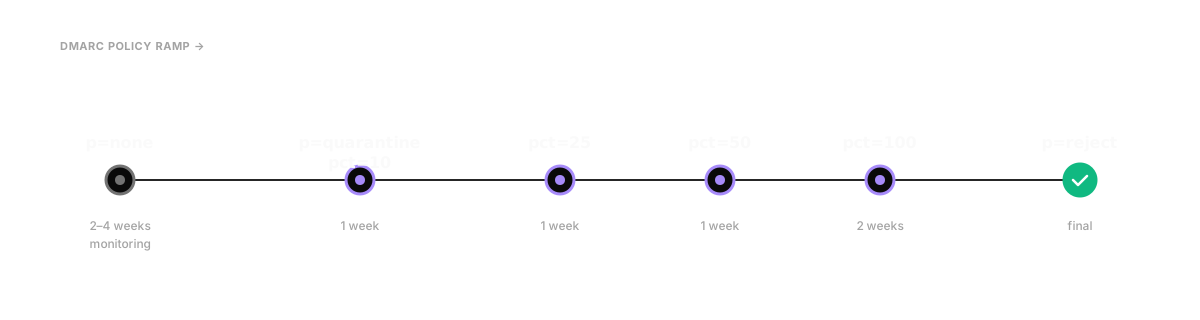
Once aggregate reports show the senders you expect and nothing surprising for a couple of weeks:
- Move to
p=quarantine; pct=10. 10% of failing mail is quarantined; 90% still gets through. You watch reports for changes in legitimate mail. - Ramp
pctweekly — 25, 50, 100. If reports show legitimate mail being quarantined, stop and fix the alignment. - Once
pct=100runs clean for two weeks, move top=reject; pct=100. Failing mail gets rejected outright.
The whole ramp is typically 30–90 days for an established domain. Brand-new domains can move faster (less mail history to reveal surprises) but should still ramp through p=none first.
Subdomain policy (sp=)
If you publish DMARC on the apex (acme.com) but want a different policy for subdomains, use sp=. For a cold-email setup, the typical pattern:
v=DMARC1; p=reject; sp=reject; rua=mailto:[email protected]; pct=100The apex protects the corporate brand (p=reject); subdomains inherit the same protection (sp=reject). If you publish DMARC directly on the sending subdomain (outreach.acme.com) instead, that record takes precedence over the apex’s sp=.
Verify DMARC
Run the SPF/DKIM/DMARC checker one more time. The checker confirms:
- DMARC record exists at
_dmarc.<domain> - Policy is one of
none,quarantine,reject rua=is setpct=is sane (100 unless you’re mid-ramp)
Combine that with checking the parser’s dashboard a few days after publishing — if it’s reporting “no data” beyond a week, your rua= is wrong or DNS isn’t propagating.
Step 4 — Use a sending subdomain
Mentioned in the pre-work and worth saying explicitly: send from a subdomain.
The structural reasons:
- Reputation isolation. A bad cold campaign torches
outreach.acme.com’s reputation.acme.comkeeps its reputation, and your CEO’s invoices keep landing in inboxes. - Independent DMARC policy. You can run
outreach.acme.comatp=rejectwithout affecting the apex. - Independent DKIM keys. You can rotate or compromise-recover one without touching the other.
- Easy retirement. If reputation becomes unrecoverable, retire the subdomain and bring up a new one. You can’t retire your apex.
The sending subdomain inherits some of the parent domain’s age signal at receivers — a brand-new subdomain on a 10-year-old apex starts in a slightly better place than a brand-new apex would. But it’s still a new sender for reputation purposes; warmup still applies.
DMARC alignment on subdomains is “relaxed” by default — which means SPF or DKIM aligning to the parent domain (acme.com) is enough. That’s usually what you want. Strict alignment (aspf=s or adkim=s) requires the From-header domain to match exactly; rarely needed for cold setups.
Step 5 — Verify everything in one pass
Once SPF, DKIM, and DMARC are all published:
- Run the checker on the sending domain. All four cards (SPF, DKIM, DMARC, MX) should show pass or warn. No fails.
- Send a test message. From the sending platform, send a real test email to a Gmail address you control. Open the message, click “Show original” (Gmail) or view the raw headers. Look for:
All three should sayAuthentication-Results: ... dkim=pass [email protected] spf=pass smtp.mailfrom=outreach.acme.com dmarc=pass header.from=outreach.acme.compass. If any sayfailornone, something didn’t take. - Cross-check with mail-tester.com. Send a test message to the address it provides; it scores authentication, content, and several other deliverability signals. 9/10 or above is the target.
After all three confirm, you’re authenticated. Whatever happens to inbox placement after that is downstream of authentication, not because of it.
Provider quick reference
The records each major service expects you to publish.
| Service | SPF include | DKIM record | DKIM selector | Notes |
|---|---|---|---|---|
| Google Workspace | _spf.google.com | TXT | google | 2048-bit; manual generation |
| Microsoft 365 | spf.protection.outlook.com | 2× CNAME | selector1, selector2 | Auto-rotated by Microsoft |
| SendGrid | sendgrid.net | 2× CNAME | s1, s2 | Both keys active |
| Postmark | spf.mtasv.net | TXT | Postmark token | Add Return-Path CNAME for SPF alignment |
| Mailgun | mailgun.org | TXT | mta | EU and US regions have different SPF includes |
| Amazon SES | amazonses.com | 3× CNAME | SES tokens | Three keys for rotation |
| Resend | _spf.resend.com | TXT | resend | DMARC strict alignment supported |
| HubSpot | _hs1._spf.hubspotemail.net | CNAME | HubSpot token | Marketing only — don’t include in cold-email subdomain |
| Klaviyo | _spf.klaviyo.com | CNAME | kl1, kl2 | Marketing only — separate subdomain recommended |
| Clement | (provided in dashboard) | TXT | (provided in dashboard) | Setup wizard generates per-domain |
Mistakes that break SPF, DKIM, and DMARC in practice
Patterns that show up over and over in audits.
Two SPF records on the same domain. RFC 7208 allows exactly one. Two records (e.g. one from _spf.google.com, one from a Mailchimp setup added later) cause receivers to return permerror — SPF effectively fails for all senders. Merge them into a single record with multiple include: directives.
Forgetting to enable DKIM signing after publishing the key. Google Workspace and SendGrid both have a “publish the record, then come back and click Start” flow. The record can be live in DNS while the platform isn’t actually signing anything. The checker will pass; real mail will fail.
Jumping straight to DMARC p=reject. You will lose mail. Always start at p=none, watch aggregate reports for at least two weeks, then ramp through p=quarantine with pct=10/25/50/100 before getting to p=reject.
Publishing DKIM with a 1024-bit (or 512-bit!) key. 512-bit is rejected by modern receivers outright. 1024-bit still passes but is the deprecated floor. Always 2048-bit for new keys.
Wildcard DKIM selectors. Don’t try *._domainkey.<domain>. DKIM selectors are exact-match by design.
Using the same DKIM selector across two services. If both Google Workspace and SendGrid try to sign with selector s1, the second one’s record overwrites the first in DNS, and one of them stops authenticating. Pick distinct selectors per service.
Missing rua= on DMARC. The record is technically valid without rua=, but you’ve blinded yourself. You won’t see when a third party starts spoofing you, won’t see alignment problems, won’t have data to inform the policy ramp. Always publish rua=.
Listing every sending service in SPF when DKIM would suffice. SPF lookup count is finite (10). DMARC alignment passes on either SPF or DKIM. If a service DKIM-signs reliably, you don’t have to include it in SPF too. This is how teams stay under the 10-lookup limit.
How DMARC, BIMI, and MTA-STS fit together
Once SPF, DKIM, and DMARC are stable, two related standards are worth understanding — both build on top of DMARC.
BIMI (Brand Indicators for Message Identification) — lets you display your brand logo in the recipient’s inbox. Requires DMARC at p=quarantine or p=reject with pct=100, plus a Verified Mark Certificate (VMC) for full Gmail support. Practical for established sending domains; overkill for a brand-new cold-email subdomain.
MTA-STS (Mail Transfer Agent Strict Transport Security) — forces TLS for inbound mail to your domain. Strictly speaking it’s about receiving, not sending, so it matters less for cold-email setups. Worth publishing on the apex domain anyway as a security baseline.
TLS-RPT — reporting layer for MTA-STS. Tells you when senders couldn’t deliver to you because of TLS issues. Same logic as DMARC’s rua=.
ARC (Authenticated Received Chain) — preserves authentication across forwarding chains. You don’t publish ARC records; receivers add ARC headers as mail traverses. Relevant when you set up forwarders.
For cold-email setups, the priority order is firmly: SPF → DKIM → DMARC → (much later) BIMI. The first three are non-negotiable; BIMI is a nice-to-have once you have steady-state inbox placement.
Common questions
Does SPF cover subdomains automatically?
No. SPF is per-domain. An SPF record at acme.com does not authorise senders for outreach.acme.com. Each sending subdomain needs its own SPF record. The same is true for DKIM and DMARC — though DMARC’s sp= tag on the parent domain controls the policy for subdomains that don’t publish their own DMARC.
Can I have more than one DKIM selector?
Yes, and you usually should. Different sending services should sign with different selectors so you can track and rotate them independently. A single domain can publish dozens of DKIM records, one per <selector>._domainkey.<domain>.
How long do DNS changes take to propagate?
Most receivers see new TXT records within minutes. Some resolvers cache aggressively; allow up to 24 hours for full propagation. If a record looks correct but the checker still doesn’t see it after an hour, check the TTL on the record (lower TTLs propagate faster) and confirm you didn’t accidentally publish at a different name (outreach._dmarc.acme.com vs. _dmarc.outreach.acme.com is a real and common typo).
What’s the right DMARC policy for cold email senders specifically?
For an established sending subdomain: p=quarantine; pct=100; rua=... is the practical floor. p=reject is stricter and ideal but requires the alignment to be airtight.
For a brand-new sending subdomain: p=none; rua=... for the first 2–4 weeks while you watch reports, then ramp. Don’t skip the monitoring phase.
For the apex domain (which you’re not sending cold from but should still protect): p=reject; sp=reject is the correct end-state. Your apex isn’t sending much mail; locking it down hurts almost nothing and prevents spoofing.
Will DMARC p=reject break my forwarded emails?
Sometimes — depending on how the forward is implemented. Plain forwards usually break SPF (the forwarder’s IP isn’t in your SPF) but preserve DKIM (the body and signed headers are unchanged). If DKIM survives, DMARC alignment passes on DKIM and the forward delivers fine.
Mailing-list-style forwards (where the list rewrites the From header or modifies the body) break both SPF and DKIM. ARC was designed to fix this, but support varies. Most cold-email senders rarely have legitimate mailing-list forwarding to worry about; for normal user-to-user forwards, DKIM-on-content is enough.
Do I need separate records per sending service?
Separate DKIM records: yes, one per service, distinct selectors. Separate SPF: no — one SPF record per domain, with multiple include: directives. Separate DMARC: one DMARC record per domain (or subdomain).
Why does SPF check pass but DMARC still fail?
The most common reason is alignment. SPF can pass (the sending IP is in the SPF record) but be aligned to a different domain than the From header. DMARC requires alignment between the From-header domain and either the SPF return-path domain or the DKIM d= domain.
Example: you send from outreach.acme.com, but the platform’s return-path is bounces.platform.com. SPF passes (the platform’s IPs are authorised), but the SPF-aligned domain (platform.com) doesn’t match the From-header domain (outreach.acme.com). DMARC fails on SPF alignment. Solution: have the platform set the return-path to a subdomain of yours (e.g. bounces.outreach.acme.com), which puts SPF and From into alignment.
DKIM alignment works the same way: the DKIM signature’s d= parameter has to match (or be a parent of) the From-header domain.
What’s the difference between DKIM signing and DKIM verification?
Signing happens at the sender — the sending platform takes the message body and selected headers, hashes them, signs the hash with the private key, and adds a DKIM-Signature header. Verification happens at the receiver — they pull the public key from DNS, recompute the hash, and check the signature.
You don’t do anything to verify; receivers do that. Your job as the sender is to make sure (a) the public key is published, (b) the platform is actually signing, and (c) the signature aligns to the From-header domain (for DMARC).
The end-state you’re working toward: a sending subdomain with a single SPF record under 10 lookups ending in ~all or -all, DKIM signing with a 2048-bit key on a known selector, and a DMARC policy at p=quarantine or p=reject with aggregate reports going somewhere a human (or a parser) reads them. That’s the foundation; everything in the 27-check deliverability checklist sits on top of it.
When you’re done, run the checker one last time and screenshot the all-green result. You’ll thank yourself the first time something goes sideways and you have a known-good baseline to compare against.